





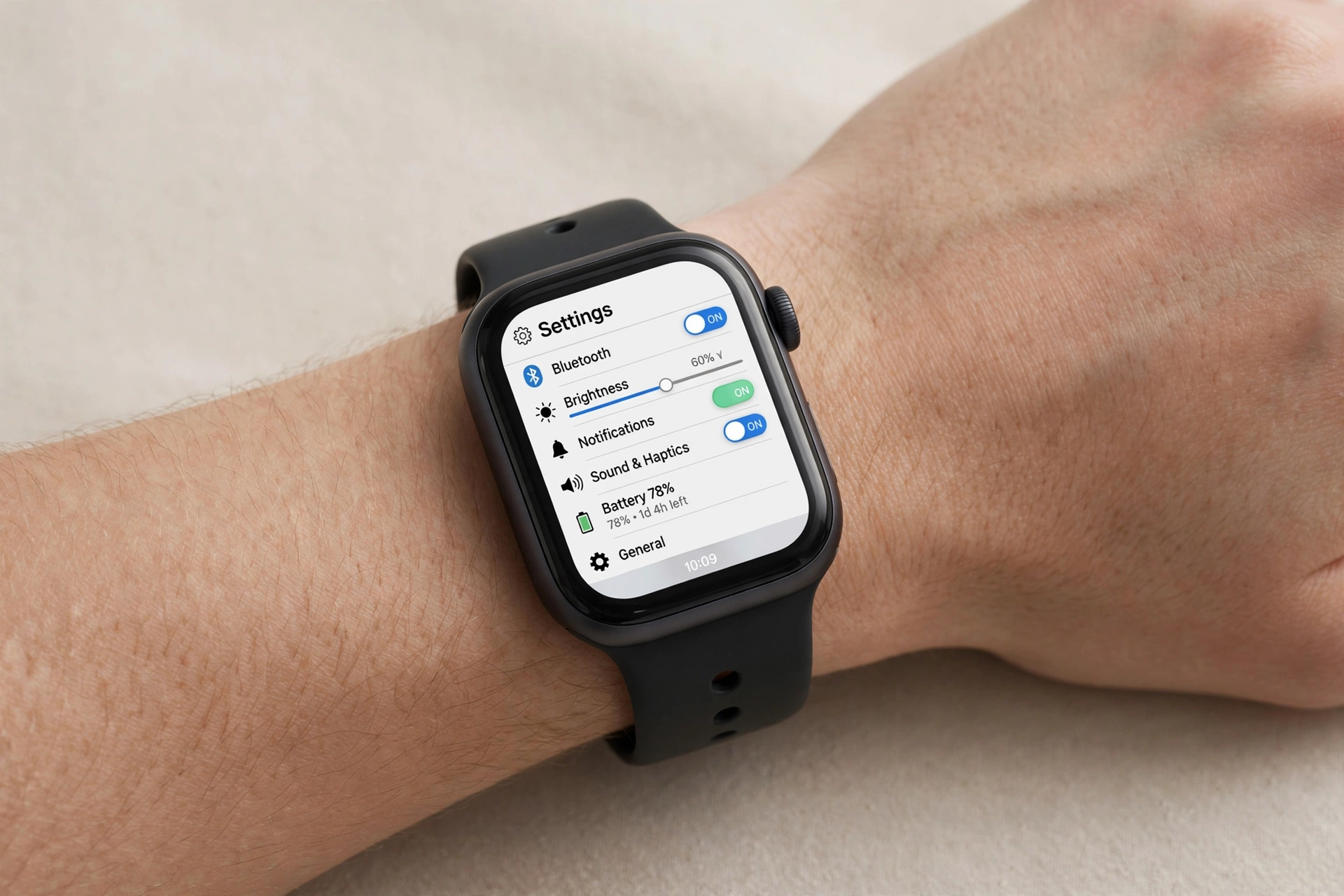
If you’re wondering how to reset an Apple Watch, you’re probably doing one of three things: fixing a stubborn glitch, handing the watch to someone else, or selling it. Whatever the reason, the process takes about five minutes — but there’s one step people skip that causes headaches later, so let’s do it properly. First, […]
If you’re wondering how to reset an Apple Watch, you’re probably doing one of three things: fixing a stubborn glitch, handing the watch to someone else, or selling it. Whatever the reason, the process takes about five minutes — but there’s one step people skip that causes headaches later, so let’s do it properly.
First, a quick distinction: restarting your watch (holding the side button and swiping Power Off) just reboots it. Resetting — erasing all content and settings — wipes it back to factory condition. This guide covers the full reset.
Before You Reset: What to Know
Your Apple Watch backs itself up automatically to your paired iPhone, so most of your data is already safe. Unpairing the watch through your iPhone creates a fresh backup right before the erase, which is why Apple recommends that route when you’re keeping the watch.
One thing to have ready: your Apple ID password. Erasing the watch turns off Activation Lock, and the watch will ask for your password to confirm. Without it, the reset can’t finish — a deliberate anti-theft feature, so don’t fight it.
How to Reset Apple Watch from the Watch Itself
- Open Settings on your watch (the gear icon in the app grid).
- Tap General, then scroll down to Reset.
- Tap Erase All Content and Settings.
- Enter your passcode if asked, then confirm.
The watch will restart and show the Apple logo while it wipes. When it’s done, you’ll see the pairing screen, ready for setup as new or restore.
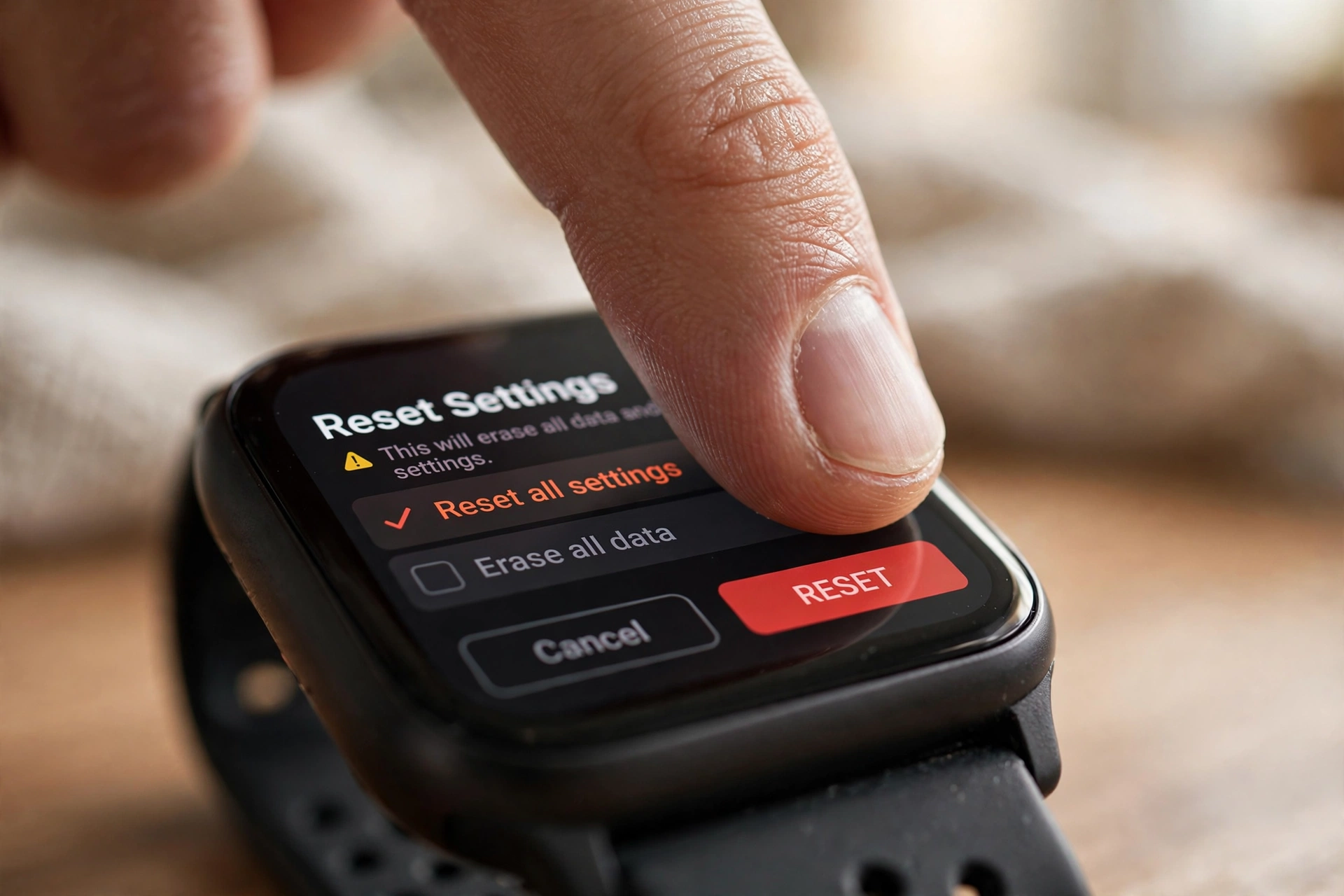
How to Reset Using Your iPhone
If the watch screen is being difficult — frozen, unresponsive, or you just prefer the bigger screen — use the Watch app:
- Open the Watch app on your iPhone.
- Tap General, then Reset.
- Tap Erase Apple Watch Content and Settings, then confirm.
This does exactly the same thing as the on-watch method.
Unpairing: The Cleanest Reset
If you’re giving the watch away or selling it, don’t just erase — unpair it. Unpairing does three things at once: creates a current backup on your iPhone, erases the watch, and removes Activation Lock so the next person can actually use it.
- Open the Watch app, tap All Watches at the top.
- Tap the info (i) button next to your watch.
- Tap Unpair Apple Watch and confirm with your Apple ID password.
This is the method Apple itself recommends, and it avoids the classic mistake of erasing the watch while it’s still locked to your account.
After the Reset: Setting It Up Again
Hold the watch near your iPhone and the pairing animation appears. Point your iPhone camera at it, then choose Restore from Backup to get your apps, faces, and settings back, or Set Up as New for a clean start. Restoring from a backup usually takes a few minutes depending on how many apps you had.
If you’re troubleshooting, by the way, the same “when in doubt, reset it” logic fixes Apple’s other wearables too — here’s how to reset AirPods, which clears pairing glitches in about a minute. And if the problem turns out to be the phone rather than the watch, this guide to how to factory reset an iPhone walks through the nuclear option safely.
FAQs
Will resetting my Apple Watch delete my health data?
Not permanently. Health and fitness data syncs to your iPhone’s Health app, and unpairing creates a backup that includes it. Restore that backup and your rings, workouts, and history come back.
Do I need my Apple ID password to reset?
Yes. Erasing disables Activation Lock, and Apple requires your password to confirm. If you’ve forgotten it, reset your Apple ID password first at iforgot.apple.com.
What’s the difference between restarting and resetting?
Restarting just turns the watch off and on — nothing is deleted. Resetting erases everything and returns the watch to factory settings.
How long does a reset take?
The erase itself takes a few minutes. Setting up and restoring from a backup can add another 5–15 minutes depending on your apps.