






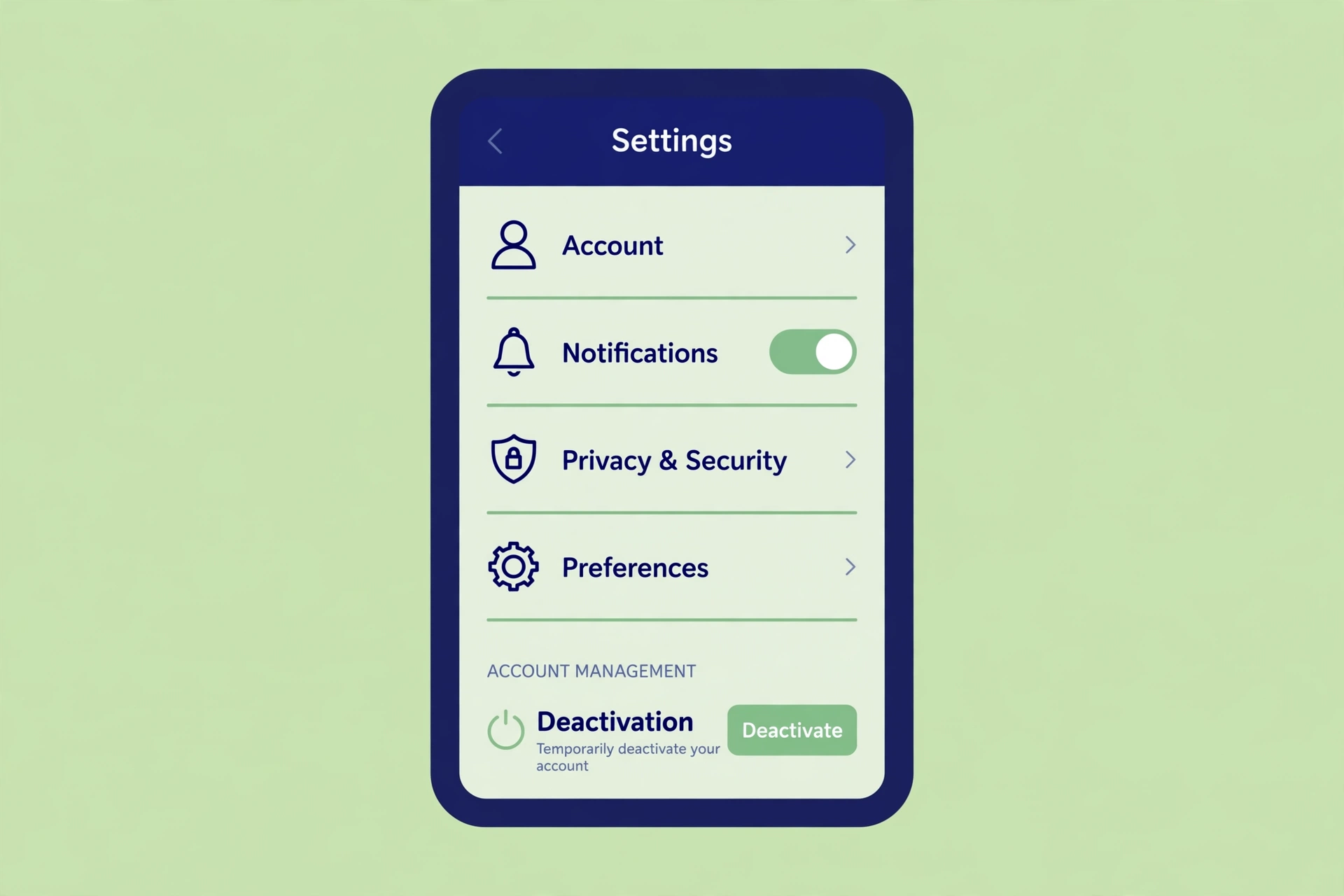
Learning how to delete Instagram account permanently is simpler than it used to be, once you know where the option lives. Instagram moved the delete flow into Meta’s Accounts Center, so older tutorials pointing to a standalone delete page no longer match the app. This guide covers the current 2026 path, delete vs. deactivate, and […]
Learning how to delete Instagram account permanently is simpler than it used to be, once you know where the option lives. Instagram moved the delete flow into Meta’s Accounts Center, so older tutorials pointing to a standalone delete page no longer match the app. This guide covers the current 2026 path, delete vs. deactivate, and what to do first.
Delete vs. Deactivate: What’s the Difference?
Before you tap anything, decide which outcome you want.
Deactivate (temporary): Your profile, photos, comments, and likes are hidden from other people, but nothing is erased. Log back in at any time to restore everything as it was.
Delete (permanent): Your profile, photos, videos, comments, likes, and followers are removed for good once the process finishes. After the recovery window closes, there is no way to get the account back.
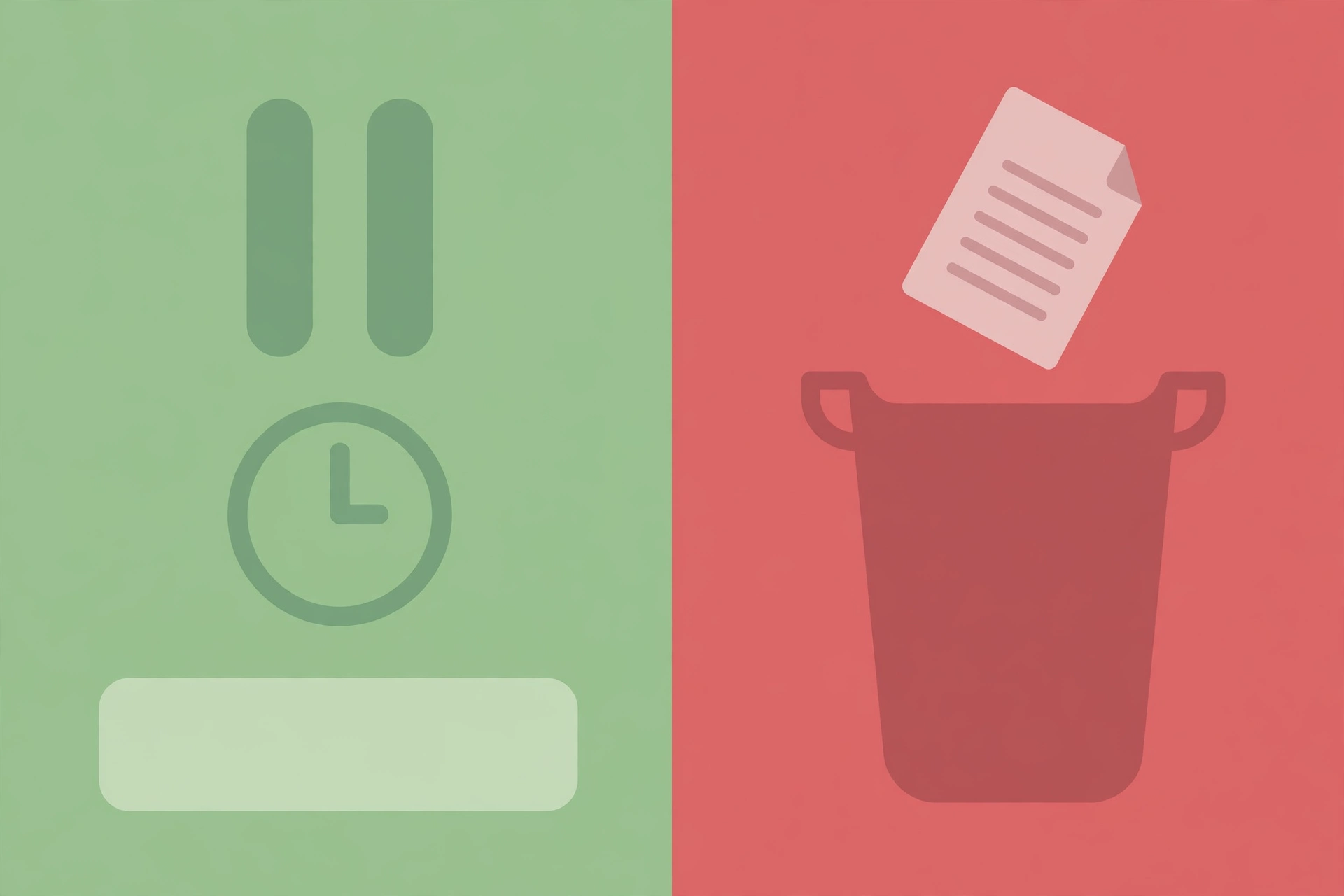
If you might want the account back, deactivate first — you can always delete later.
Before You Delete: Download Your Data
Once deletion is final, the photos and videos on the account are gone. Download a copy first, while you still can.
- Go to Accounts Center, then tap Your information and permissions.
- Tap Download your information and request a copy of your data, such as your photos, videos, and messages.
- Save the export somewhere safe once it is ready.
Also save anything only kept on Instagram, like contacts you only talk to there.
How to Delete Instagram Account: Step by Step
These steps work in the app on iPhone and Android. On a computer, start from More → Settings → Accounts Center, then follow the same path from Personal details onward. Labels can vary slightly by device.
- Log in to the account you want to delete and tap your profile picture (bottom right).
- Tap the menu (three lines, top right), then tap Settings and privacy.
- Tap Accounts Center near the top of the screen.
- Tap Personal details, then tap Account ownership and control.
- Tap Deactivation or deletion and select the Instagram account you want to remove.
- Choose Delete account (not Deactivate) and tap Continue.
- Pick a reason for leaving and tap Continue.
- Re-enter your password, then tap Delete account to confirm.
Your profile becomes invisible right away. With multiple accounts, double-check your step 5 selection. Forgot your password? Reset it before starting.
What Happens to Your Data After Deletion
Confirming deletion removes your profile, photos, videos, comments, likes, and followers. Your account stops appearing in search.
Two things to know: full removal from Instagram’s systems can take up to 90 days on the back end, even though your profile disappears immediately. Second, your old username may be claimed by someone else if you sign up again later. If you use Threads with the same login, deleting your Instagram account also deletes your linked Threads profile.
The 30-Day Recovery Window
After requesting deletion, you have 30 days to change your mind. Log back in during that window to cancel it; your profile stays hidden meanwhile.
If you are sure about leaving, avoid logging in, since signing in can cancel the request. After 30 days, the account is gone for good.
If You Only Need a Break, Deactivate Instead
To deactivate, follow the same path but choose Deactivate account, then enter your password and confirm. Your profile disappears until your next login, and everything is still there on your return.
Many people delete Instagram because endless scrolling and comparison wear them down. If that sounds familiar, a break may be enough — our guide on how to be happy has ideas for healthier daily habits. Or fill the gap offline, like learning how to make cold brew coffee at home.
Frequently Asked Questions
Can I delete my Instagram account from the app?
Yes — from the app on iPhone or Android, or from a browser on a computer. All routes go through Accounts Center.
What happens if I log in during the 30-day window?
It lets you cancel the deletion and keep your account. To let deletion go through, do not log in until the window has passed.
Can I recover my account after the 30 days are over?
No. Once the window passes, the account is permanently deleted. You can sign up again, but old posts, followers, and messages will not come back, and your username may be taken.
Can I delete one Instagram account and keep another?
Yes. On the Deactivation or deletion screen, pick which profile to remove — just be sure you select the right one.
Final Thoughts
Deletion is permanent once the recovery window closes, so download your data and choose carefully. If you are on the fence, deactivate first — you can always come back, or delete later with a clear head.




One thought on “How to Delete Instagram Account: Step-by-Step Guide”